GreatSoft PM 2022.1.1 Integration Release Notes
Xero Accounting & Xero Tax
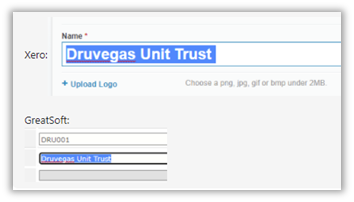
- Xero Tax: Removed the extra space that had presented at the end of the Client Name in Xero when Trust or Partnership entities are being pushed to Xero.
- Xero Accounting: The reactivation of Archived Contacts which are restored in Xero has been enhanced.
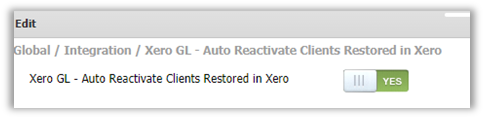
A new system option has been added for firms to automate the reactivation of clients which are restored in Xero.
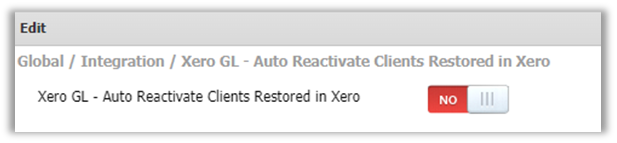
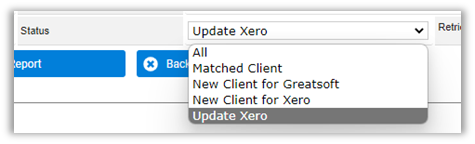
If the system option is left as NO, a new “Restore Terminated Client” status appears in the Client Integration area.

If a client who was terminated in GreatSoft and Archived in Xero is Restored in Xero, they will appear in the “Restore Terminated Client” list after the next Refresh from Xero is performed.
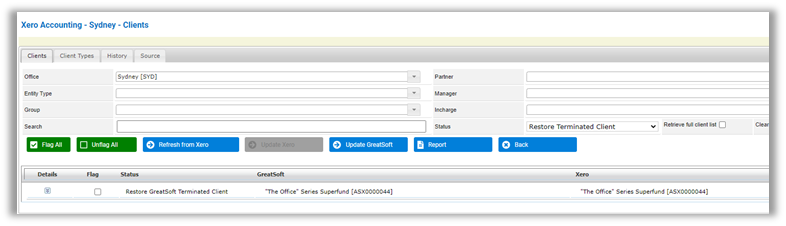
Select the row to be Restored in GreatSoft and click the “Update GreatSoft” button. This will remove the Date Terminated and Flag the Client for Office Costing in GreatSoft.
If the System option is changed to YES, the restoration process is automated with a refresh from Xero and the “Restore Terminated Client” status is hidden from the Client Integration screen.
System Option
Status selector
Client Matched again after Refresh

NB: The 2022.1.1 update includes the new “Integration Automation” functionality. This functionality will be piloted with select customers and rolled out to all customers after a successful pilot is concluded. We will contact firms to discuss enabling this feature once it’s Generally Available.
BGL
- Corrected the integration procedure that had only included Clients being flagged for Sec. The integration has been updated to include Clients not flagged for Sec during matching, and to flag those rows for Sec once matched.
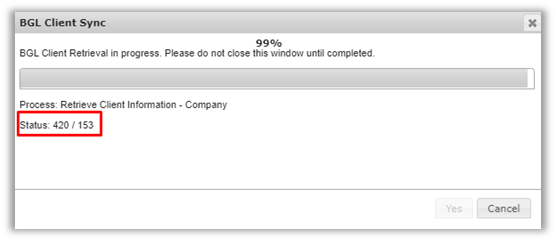
- CAS360: Applied fixes to the Client Counter that had indicated less than the actual number of Clients when doing a refresh from CAS360, whereas the actual counter had also exceeded the maximum number of Clients, e.g., 423/157.
Example of incorrect counter
Class/NowInfinity
- NowInfinity: Implemented Associated Entity in API Requests, allowing Integration Profiles to be connected to an Associated Entity in the Config Profile. Each NowInfinity Profile now requires an Associated Entity to be selected for the profile.
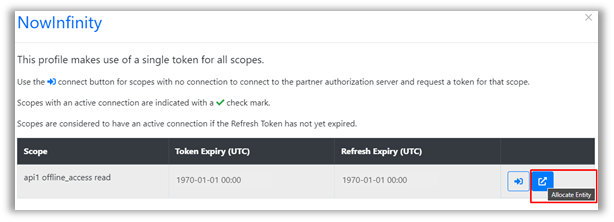
Click Connect on the NowInfinity Profile
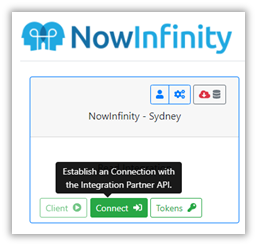
Click the Allocate Entity button.
Click the Associated Entity and select the correct Associated Entity for the Integration profile and click Save.
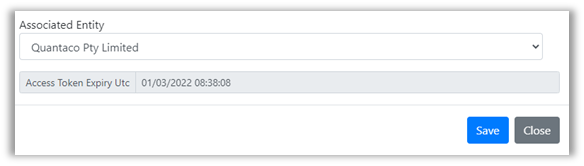
Once selected, the NowInfinity profile will only ever retrieve data for this Associated Entity (This is to stop the incorrect reconnection of profiles causing cross-pollination of NowInfinity Clients in the Integrations area).
- NowInfinity: Implemented a new Company Integration endpoint provided by NowInfinity. This should provide stability for future refreshes from NowInfinity for Companies.
The new endpoint also adds paging which is displayed in the Refresh Status.
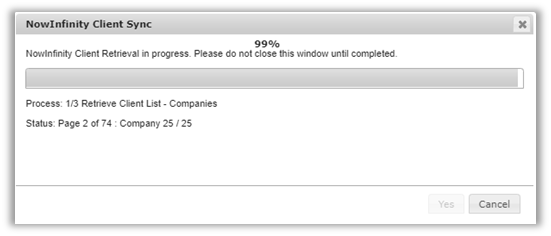
- NowInfinity: Optimized the integration process that had caused time-outs when Refresh Clients from NowInfinity.
- Class: Addressed the incorrect “Process complete” user feedback when interacting with any actions, despite not having taken any action.